The notification history is an important component of the notification management function provided by the Knock In assistant. You can access the history using the “notifications” tab from the main screen.
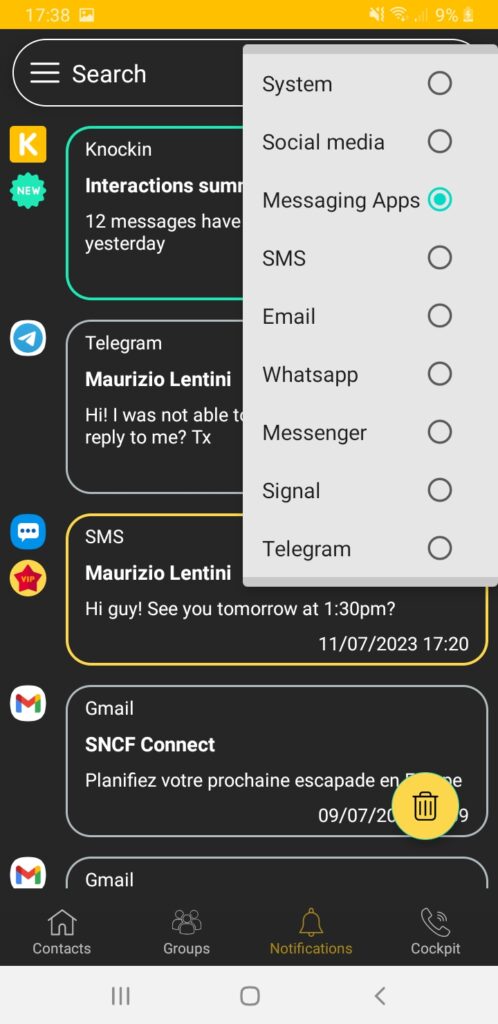
The Knock In assistant logs all notifications received on your smartphone or tablet device from all applications installed and running on the device. With the notifications history tab, you can visualize all these notifications.
Each notification is presented with the originating application identifier (logo), the originator name for messaging applications, an informative text (e.g. message title in the case of messaging application) and the event date & time.
As there can be a large volume of notifications, Knock In assistant provides you with several filtering capabilities, so you can easily retrieve and visualize the ones you are interested with at a given time and/or situation.
The first filtering option allows you to visualize only the notifications related to messaging applications.
Within this filtered view, you can then choose among several display options, so you can easily retrieve the notification(s) you are looking after:
- Date & time: you get the most recent notifications first.
- Contact: you get the list of all notifications received from each of your contacts.
- Priority: notifications from your VIP contacts are on top of the list.
From this notifications list, you can then easily access the complete information –or message- through a short tap on the individual notification you are interested with.
You can also permanently remove one or several notifications from this history straight from the displayed list using a “multiselect tap” (long tap on first selection, then short taps on the subsequent ones you want to remove).
