Knock In assistant offers you a more compact view of your address book contents. Several grid sizes are available, allowing best fit with your smartphone screen size and personal preference. In this grid view, the information attached to each contact (first name, name, phone numbers and e-mail @) are extracted from the smartphone address book.
You can modify this information as follows:
- A short tap on the contact icon displays the « edit » icon
- A short tap on the «edit» icon brings you in the « contact details » screen.
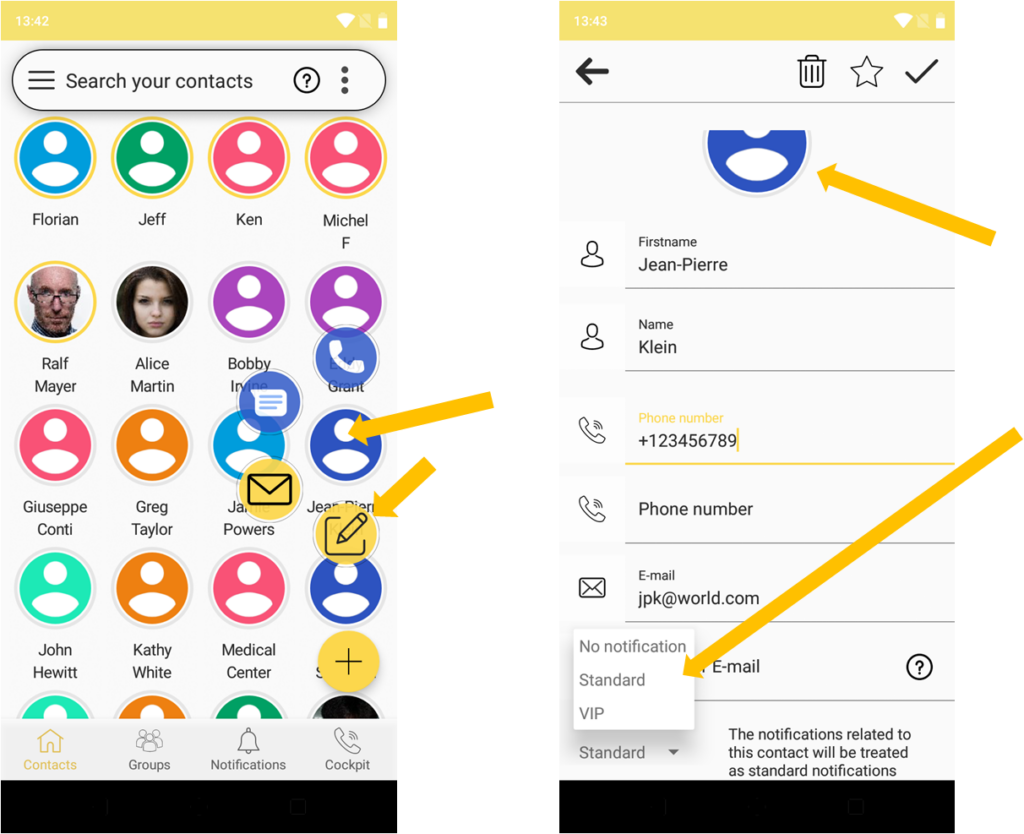
From this “contact details” screen, you can modify the various attributes. You can also add a picture as the contact icon and change the notification priority level for this contact.
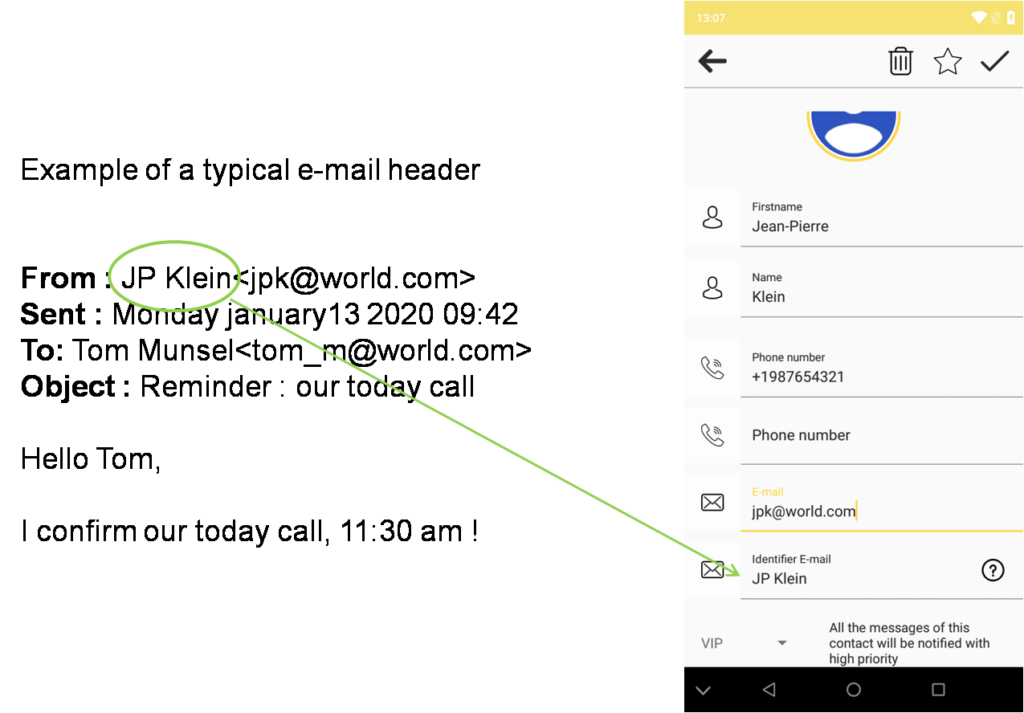
Dans cet écran « détails du contact » se trouve un champ intitulé « Identifiant E-mail ». Cet identifiant est le nom que vous trouvez dans le champ « De : » dans l’en-tête d’un e-mail (l’identifiant est distinct de l’adresse e-mail).
In case of e-mail messages, Android notifications only contain the e-mail identifiers, not the e-mail addresses. Knock In assistant relies on the Android notifications. So, in order to get prioritized notifications of e-mail messages from your VIP contacts, you have to indicate your VIP contacts E-mail Identifiers in the contact details (E-mail Identifiers are case and special characters sensitive).
A partir de l’écran « vue synthétique », vous pouvez très simplement initier une communication avec un ou plusieurs contacts (voir aussi plus loin, fonction « sélection multiple »):
- Une touche courte sur l’icône du contact choisi fait apparaître les applications disponibles pour
communiquer avec ce contact. - Une touche courte sur l’icône de l’application choisie vous emmène directement dans l’application. L’identifiant du contact est automatiquement passé à l’application, vous n’avez plus qu’à composer votre message.
Last, from the same screen, you can access the complete Knock In assistant menu through the navigation drawer (left to right swipe).