Knock In assistant provides flexible and powerful features for easing your communication with groups of contacts. From the Knock In assistant landing page, go to the “groups” tab to access these functions.
Creating a group can be done very simply:
- Short tap on the add group icon
- Provide a name for the group to be created
- Select the contacts you want to be part of the group from the contents of your address book
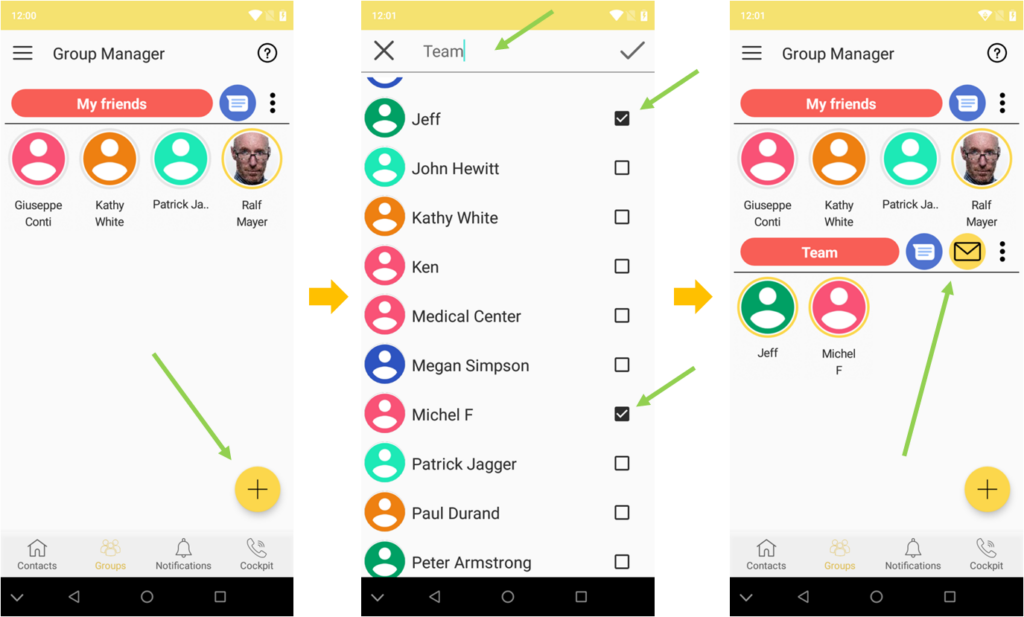
Once created, the group is visible and the display shows the group name along with the group members and the medias you can use to reach simultaneously all the group members.
Note: in the scope of this first version of the Knock In assistant, the medias for group communication can be only SMS/Messaging and/or e-mail.
Sending a message to the group is done very simply, just with a short tap on the media icon you want to use (icons right to the group name): you will be directed to the message composition screen.
In some situations, you may only want to have a “one shot” communication with a group of contacts. Thanks to the “multi select” feature, the Knock In assistant allows you to do so in a very easy and straightforward way, skipping the group creation operation.
- Directly from the contacts view, select through long tap the contacts you want to communicate simultaneously with.
- The Knock In assistant indicates the common communication channel that can be used to reach all the contacts. You can select the channel that suits your needs.
- In case a single communication channel cannot reach all the selected contacts, the Knock In assistant allows you to send the same message simultaneously through different communication channels (sms, e-mail). To do so, just short tap the “multi channels” icon.
Your communication assistant with then display the medias available for each of the selected contacts: just pick up the appropriate media for each of the contacts, then type in your message !